

Using the Terminal (Interactive Mode)
OPBTPython supports a Python interactive terminal (REPL) over serial or Bluetooth: connect to the device, then type code at the >>> prompt and run it immediately. This is useful for trying short snippets, debugging scripts, or inspecting variables. This page explains how to choose terminal software, how to send single-line and multi-line code, and how to handle common issues. For the exact commands to enter interactive mode, see the main manual 2.4 Interactive mode.
1. What is the interactive terminal?
The interactive terminal is a REPL (Read–Eval–Print Loop): you enter one or more lines of Python code, the device runs it and prints the result, then waits for the next input. Compared with writing a script and downloading it first, interactive mode is better for:
- Running a few statements and checking the result;
- Stepping through code and inspecting variables while debugging;
- Getting familiar with OPBTPython syntax and APIs.
2. Choosing terminal software
2.1 Serial / Bluetooth terminal tools
If you connect to OP-BTS via USB serial or a Bluetooth virtual COM port, use any terminal that can send and receive serial data and send complete lines (with line endings). Examples:
- Windows: VxTerm, PuTTY, SecureCRT, XCOM, Serial Port Utility, etc.
Before use, make sure:
- You have selected the correct COM port for OP-BTS or the Bluetooth virtual serial port (How to pair and get the port on Windows 11). For optical-head connection, use a docking optical probe connected to OP-BTS and use that probe’s COM port.
- The baud rate matches the device (often 9600; see the product manual).
- You send whole lines with a line ending (
\r\nor\n) so the device can recognize each command.
For multi-line scripts, send a complete code block (with correct indentation) and a final newline. See “Single-line and multi-line input” below.
2.2 VxTerm usage
VxTerm is a serial and network terminal that works well with OP-BTS over USB serial or Bluetooth virtual COM for interactive use and debugging. Below are the main steps and notes when using it with OPBTPython.
Get and install
- Search for “VxTerm” in the Microsoft Store and install it.
- No extra drivers are required; run VxTerm after installation.
Connecting to OP-BTS
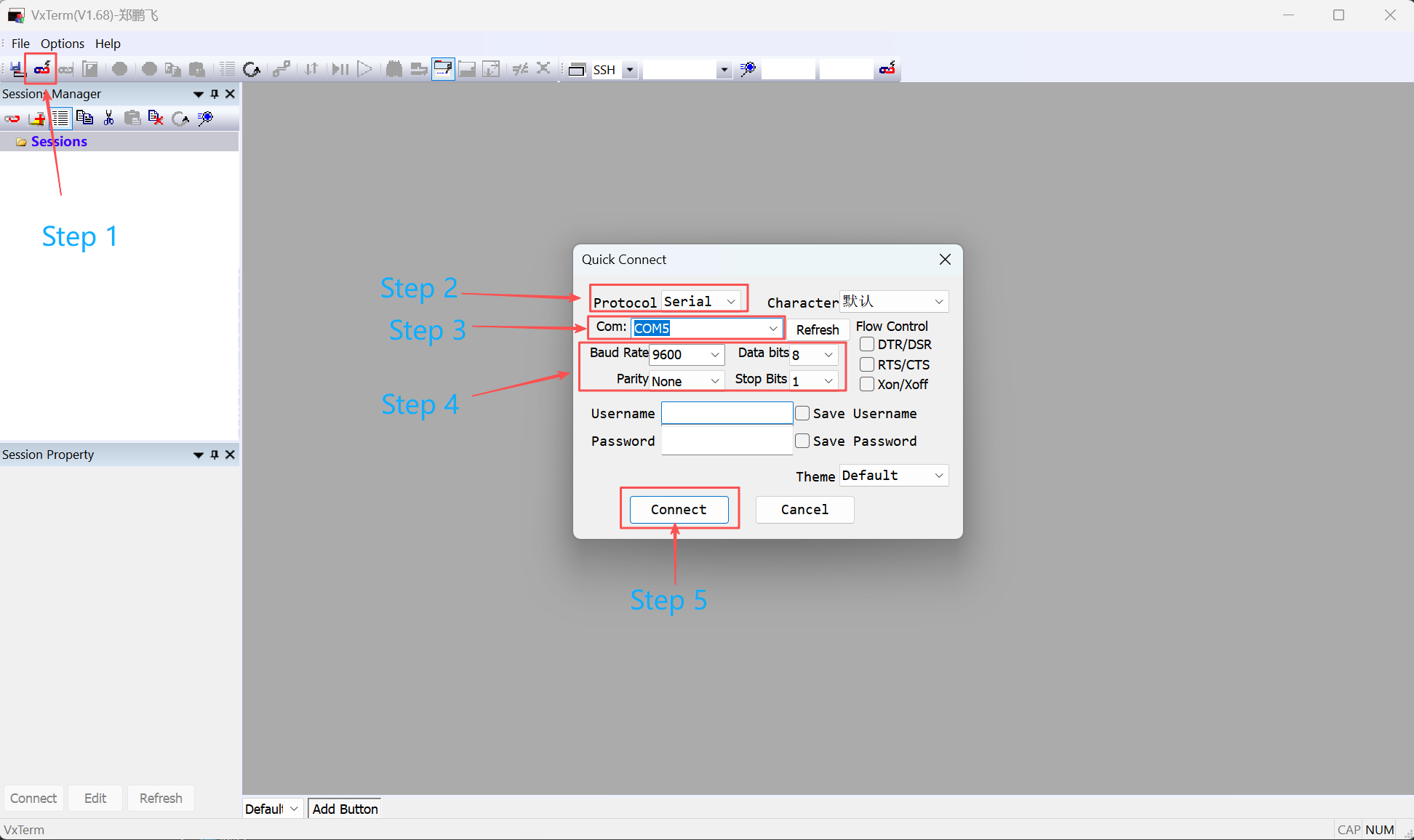
- Click the Quick Connect button on the toolbar.
- Under Protocol, choose Serial.
- Under COM, select the COM port for OP-BTS (Bluetooth virtual port or the docking optical probe’s port). (How to pair and get the port on Windows 11)
- Under Baud rate, set the same baud rate as the device (often 9600; see the OP-BTS manual). Data bits, stop bits, and parity are usually 8, 1, None.
- Click Connect.
Window after connection
After connecting, click Session Properties to view session options.
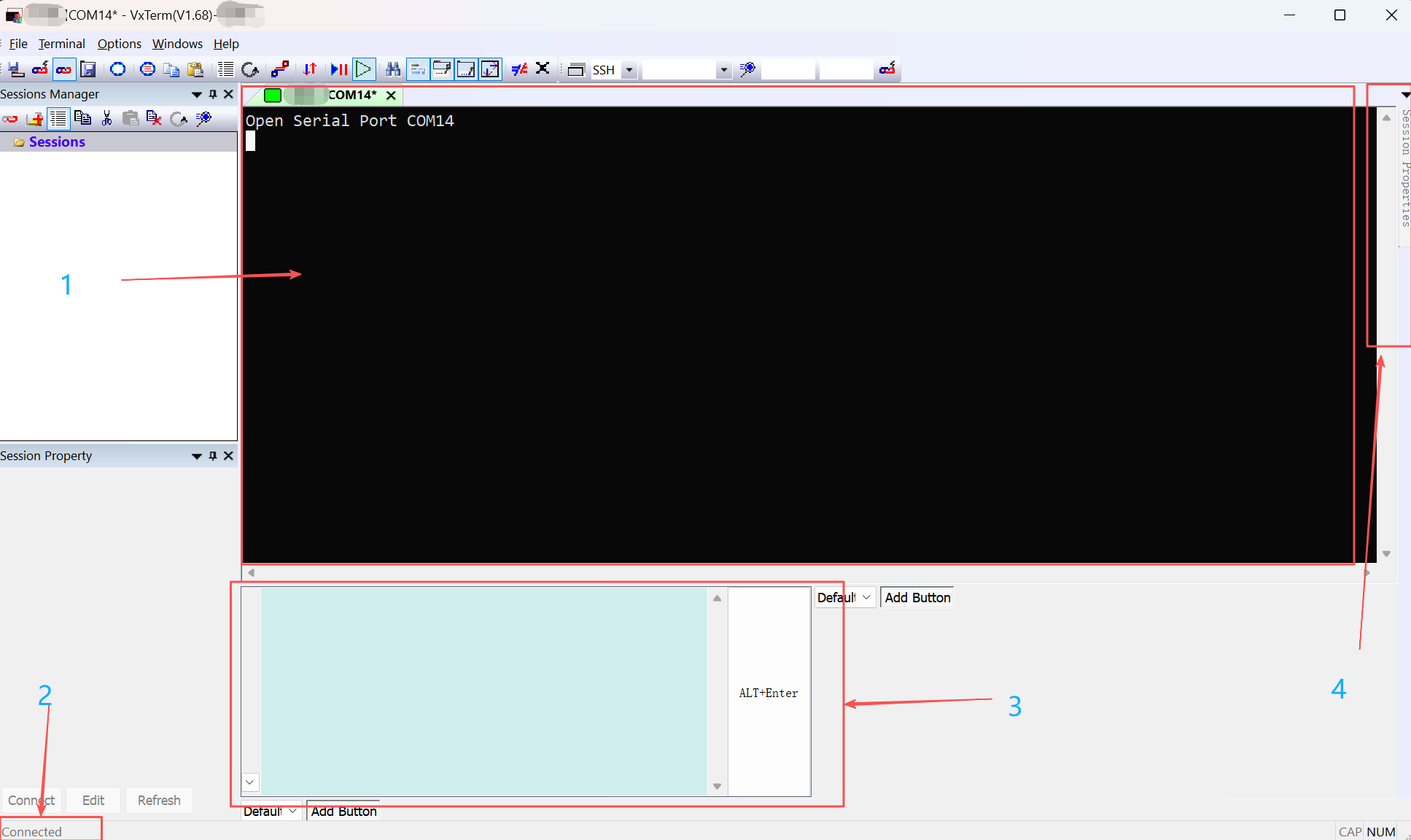
- Main display area
- Status line (connection state, etc.)
- Command input box
- Session properties
Entering OPBTPython interactive mode
After connecting, open Session Properties.
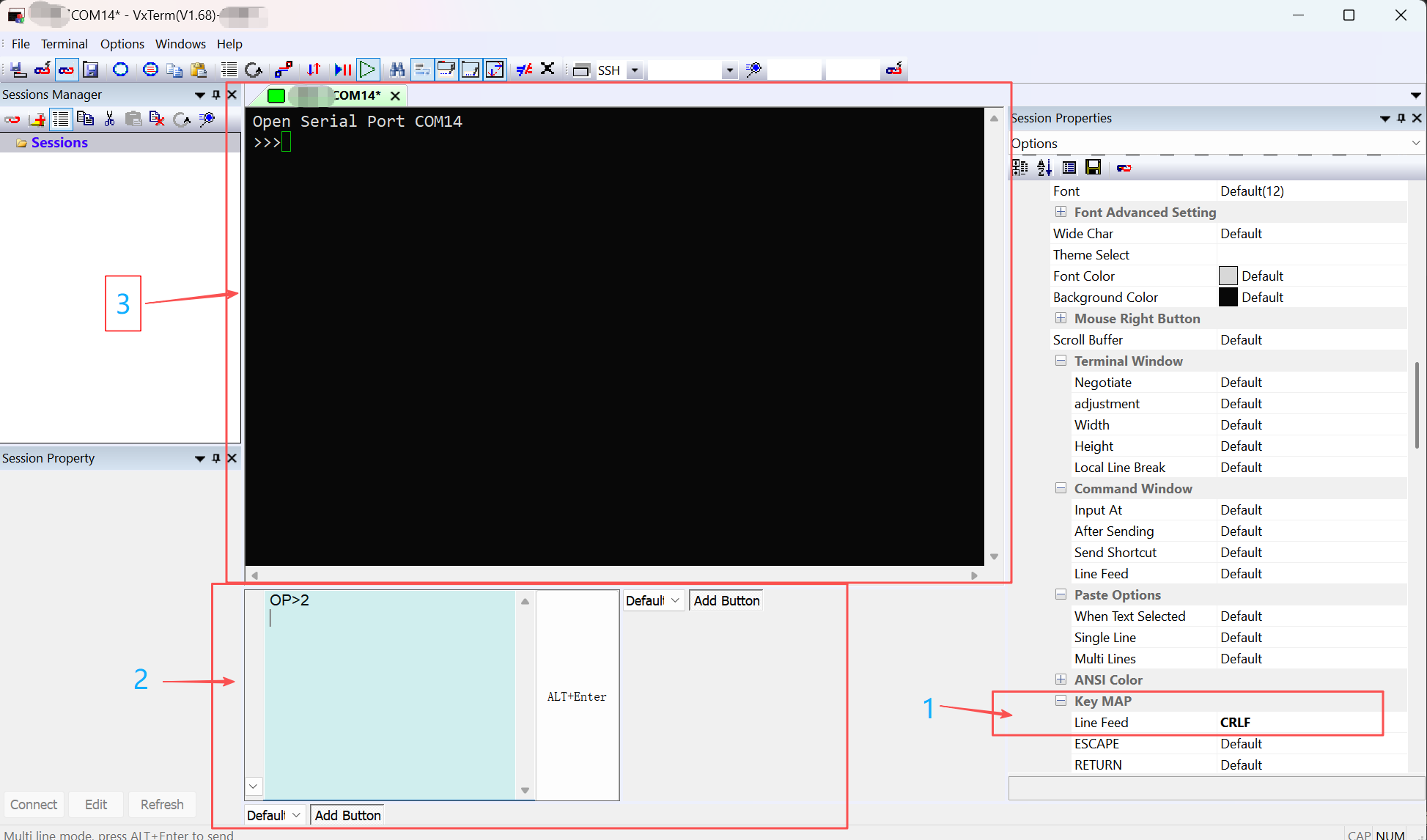
- In Session Properties, find Line Feed under Key MAP and set it to CRLF.
- In the command input box, type
OP>2and press Enter, then press Alt+Enter to send the whole line.- Firmware > 4.68: type
OP>2and press Enter. - Firmware < 4.68: send
OP>1and Enter, then send{"PythonRunMode":1}and Enter.
- Firmware > 4.68: type
- When the command is accepted, the main area shows the
>>>prompt. You are now in the Python interactive terminal and can type Python code.
Single-line code test
With the session connected, open Session Properties if needed.
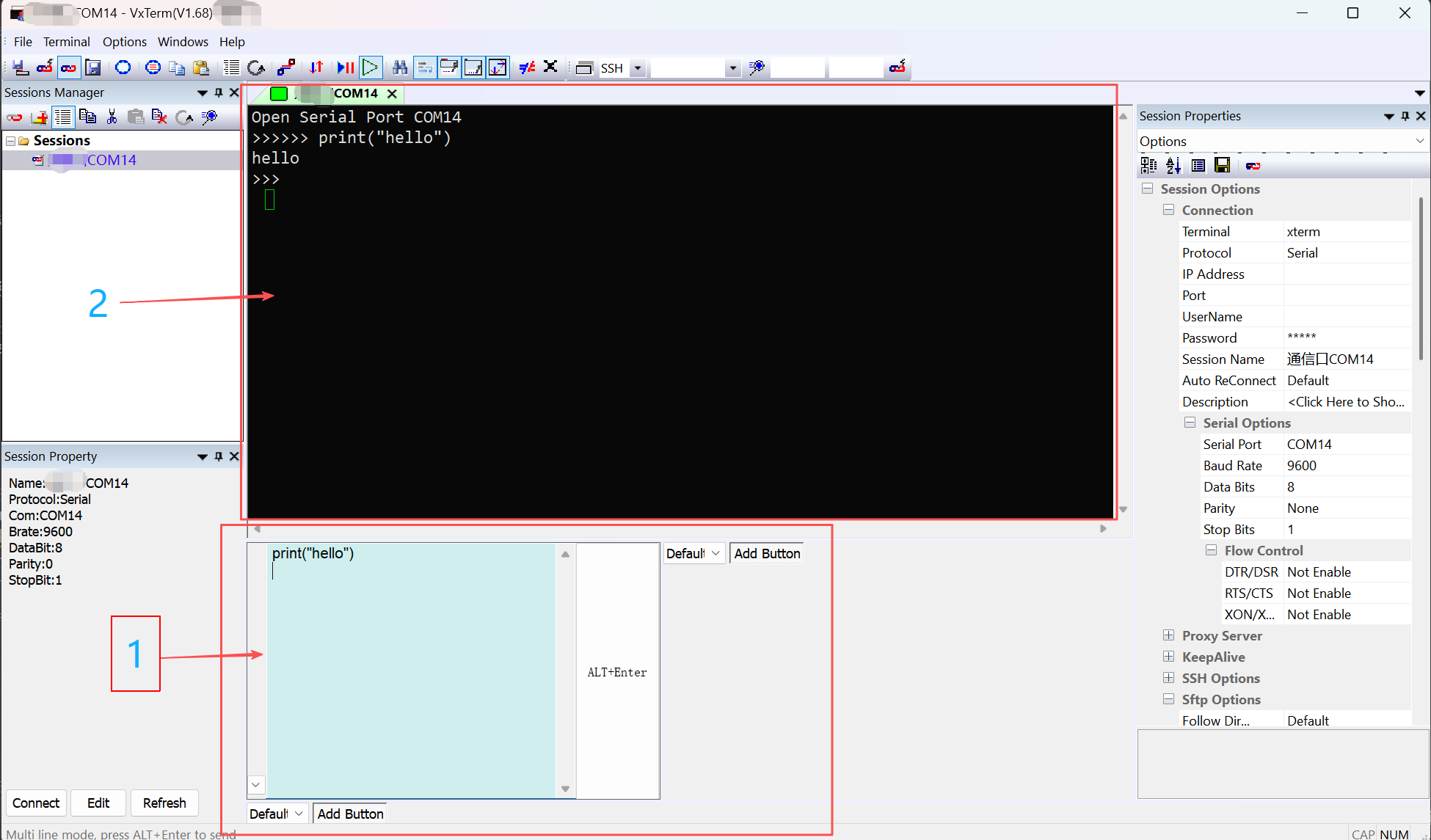
- Type a command in the input box and press Enter, then press Alt+Enter to send the line.
- The main area shows the command output.
Multi-line code test
Multi-line scripts must be sent as a complete code block for the device to run them. Notes:
- Use
#!pikaat the start and end of the block to mark the code block. - The block must end with a zero-indent line (e.g. a line at the same level as
while) so the device knows the block is finished.
Correct example
#!pika
a = 0
while a < 10:
    a = a + 1
    print(a)
print('the end')
#!pika
In VxTerm: type or paste the full block in the command box, then press Alt+Enter to send it (if the tool supports sending multiple lines at once).
Disconnect and exit
- Disconnect: Close the VxTerm window to disconnect the serial port.
Menu names and behavior may differ; refer to the actual application and product documentation.
3.3 Exiting the interactive session
At the >>> prompt, type exit() and press Enter to leave interactive mode (on firmware > 4.60 the device usually reboots; see the product manual for other versions).
Example output when running a temporary file:
#
=============== [code] ===============
print('hello pikapython in file')

=============== [code] ===============
hello pikapython in file
>>>
Note (temporary file):
- The first and last lines of the temporary file must be
#!pika, or it will be treated as plain text.
4. Exit and error handling
- Exit interactive mode: At
>>>, typeexit()and Enter (see 3.3 above). On firmware > 4.60 the device usually reboots; see the product manual for other versions. - Code errors: The device prints an error message when code fails; fix and re-enter as needed.
- Interrupt running code: If a script is stuck, use the key combination described in the device manual (e.g. hold left key, then right key until the red LED turns on, release right, keep holding left for 3+ seconds).
- Device not responding: Try the “force power off” or “shutdown” procedure in the device manual (e.g. key combination or long-press middle key).
For more detail, see the main manual 2.4 Interactive mode (usage, exit, errors, device not responding).
5. Reference
- Main manual: OPBTPython Script Manual