

OP-BT/BTS File Manager MAUI User Manual
Contents
- Chapter 1: MAUI version overview
- Chapter 2: Quick start
- Chapter 3: Interface overview
- Chapter 4: Device connection
- Chapter 5: File management
- Chapter 6: Python development support
- Chapter 7: Communication monitor
- Chapter 8: Settings and configuration
- Chapter 9: Platform-specific guides
- Chapter 10: FAQ
- Chapter 11: Troubleshooting
Chapter 1: MAUI version overview
1.1 What is the MAUI version
The OP-BT/BTS File Manager MAUI edition is a cross-platform file management app built with .NET MAUI (Multi-platform App UI). It keeps the core features of the desktop version while offering a modern UI and better cross-platform experience.
1.2 MAUI version features
Cross-platform support
The MAUI version supports:
- Windows 10/11: Full support, including serial and Bluetooth BLE
- Android: In development; later versions will add serial and Bluetooth BLE (planned for Android 5.0+)
- iOS: In development; later versions will add Bluetooth BLE (planned for iOS 13.0+)
- macOS (Mac Catalyst): In development; planned Bluetooth BLE support (macOS 11.0+)
Modern UI
- Responsive layout: Adapts to different screen sizes and resolutions
- Material Design: Follows current design guidelines
- Smooth animations: Improved interaction
- Dark mode: Follows system theme (planned)
Core features
- Dual-pane file manager: Explorer-style layout with two panels
- Connection options: Serial and Bluetooth BLE
- Python support: Compile and run Python files
- Communication monitor: Simple real-time view of device traffic (MAUI-only)
- Languages: Chinese and English
1.3 System requirements
Windows
- OS: Windows 10 version 1903 or later, or Windows 11
- CPU: Intel/AMD x64
- RAM: 4 GB (8 GB recommended)
- Disk: 100 MB free
- .NET: .NET 9.0 runtime (usually installed with the app)
Android
- OS: Android 5.0 (API 21) or later
- RAM: 2 GB (4 GB recommended)
- Storage: 50 MB free
- Permissions: Bluetooth and location (Android 6.0+)
iOS
- OS: iOS 13.0 or later
- Devices: iPhone, iPad
- Storage: 50 MB free
- Permissions: Bluetooth
macOS
- OS: macOS 11.0 (Big Sur) or later
- CPU: Intel or Apple Silicon (M1/M2)
- RAM: 4 GB (8 GB recommended)
- Disk: 100 MB free
Chapter 2: Quick start
2.1 Install the app
Windows
-
From the Microsoft Store (when available):
- Open Microsoft Store
- Search for “OP-BT/BTS File Manager”
- Click Install
-
From installer:
- Download the
.msixor.exeinstaller - Double-click the installer
- Follow the setup wizard
- Download the
Android (not yet supported)
- From Google Play (when available): open Google Play, search for the app, install.
- From APK: download the
.apk, enable “Install from unknown sources”, then open the APK to install.
iOS (not yet supported)
- From App Store (when available): open App Store, search, install.
- From TestFlight: install the beta via the TestFlight app.
macOS (not yet supported)
- From Mac App Store (when available).
- From DMG: download the
.dmg, open it, and drag the app to Applications.
2.2 First launch
Starting the app
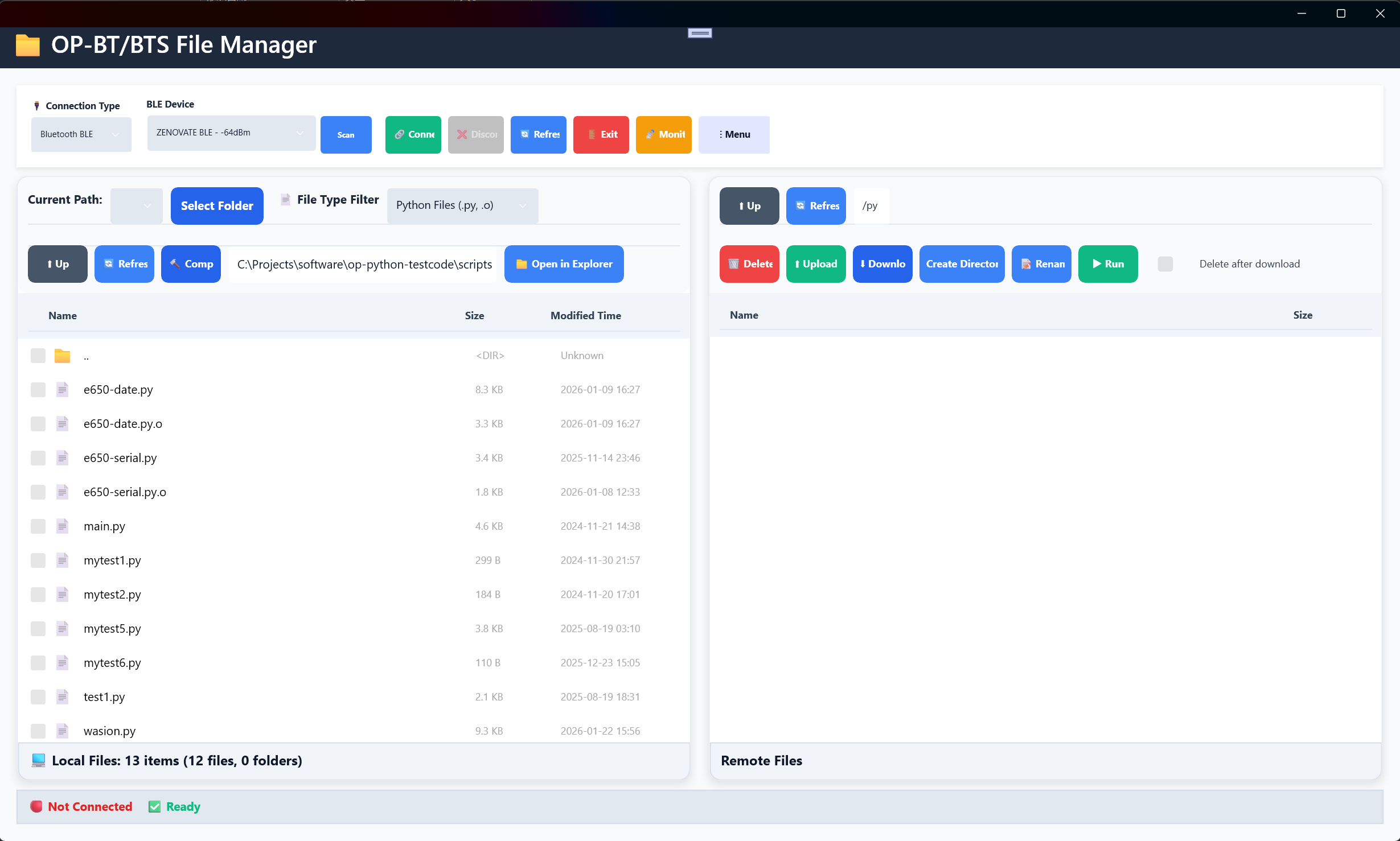
- Windows: Start from the Start menu or desktop shortcut
- Android: Open from the app drawer
- iOS: Open from the home screen
- macOS: Open from Applications or Launchpad
First-time setup
When you first start the app, the main window is shown. Recommended steps:
- Check language: Tap the menu (⋮) → Settings → set language (e.g. English or 中文).
- Prepare the device: Power on the OP-BT/BTS device and have the right cable or Bluetooth ready.
- Use this manual: Read the sections below for connection and file operations.
2.3 Interface overview
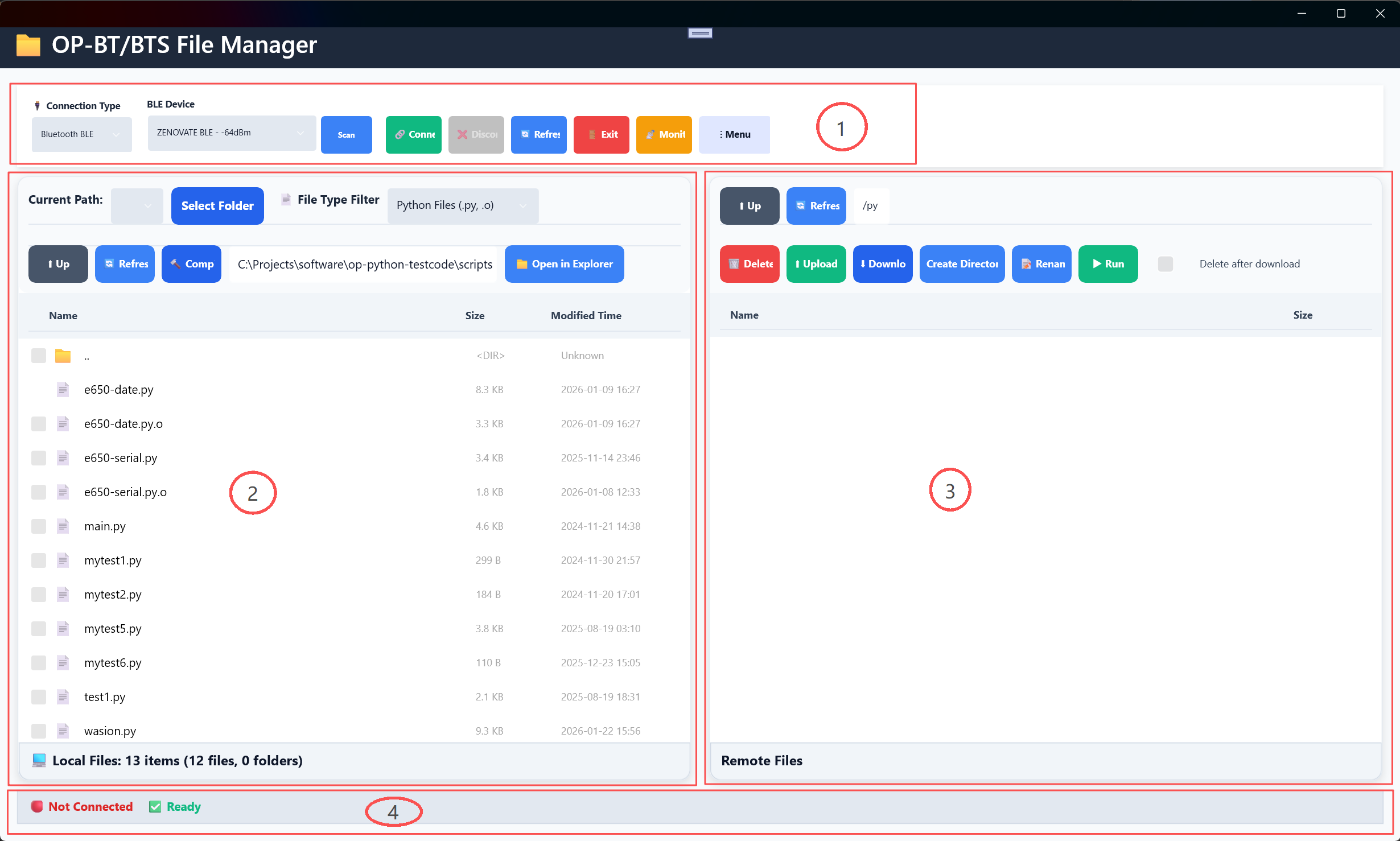
The main window has four areas:
- Connection panel (top): Configure and connect to the device
- Local file panel (left): Browse and manage local files
- Remote device panel (right): Browse and manage device files
- Status bar (bottom): Connection status and progress
2.4 Basic workflow
Typical workflow
1. Start the app
   ↓
2. Choose connection type (Serial or Bluetooth BLE)
   ↓
3. Set connection parameters
   ↓
4. Click Connect
   ↓
5. Wait for connection
   ↓
6. Browse device files
   ↓
7. Perform file operations (upload / download / delete, etc.)
   ↓
8. Disconnect when done
Quick connect examples
Serial:
- Select Serial
- Select the COM port (e.g. COM3)
- Use default parameters (9600, 8, None, 1)
- Click Connect
Bluetooth BLE:
- Select Bluetooth BLE
- Click Scan
- Wait for scan to finish
- Select the device
- Click Connect
Chapter 3: Interface overview
3.1 Main layout

The main window uses a dual-pane layout similar to Windows Explorer, optimized for touch and different screen sizes.
Areas
| Area | Position | Purpose |
|---|---|---|
| Connection panel | Top | Connection type, parameters, connect/disconnect |
| Local file panel | Left (50% width) | Browse and manage local files |
| Remote device panel | Right (50% width) | Browse and manage device files |
| Status bar | Bottom | Connection status, progress, statistics |
3.2 Connection panel

The connection panel at the top holds all options for connecting to the device.
Serial mode
When Serial is selected:

- Connection type: Dropdown → Serial
- Port: Dropdown listing available COM ports
- Baud rate: Dropdown (300–1152000)
- Data bits: 7 or 8
- Parity: None / Even / Odd
- Stop bits: 1 or 2
Bluetooth BLE mode
When Bluetooth BLE is selected:
- Connection type: Dropdown → Bluetooth BLE
- BLE device: Dropdown listing scanned devices
- Scan: Button to scan for BLE devices
Buttons
On the right side of the connection panel:
- 🔗 Connect: Connect to the device
- ❌ Disconnect: Disconnect
- 🔄 Refresh: Refresh connection or device list
- 🚪 Exit: Quit the app
- 📡 Monitor: Open the communication monitor (MAUI only)
- ⋮ Menu: App menu (Settings, About, etc.)
3.3 Local file panel (left)
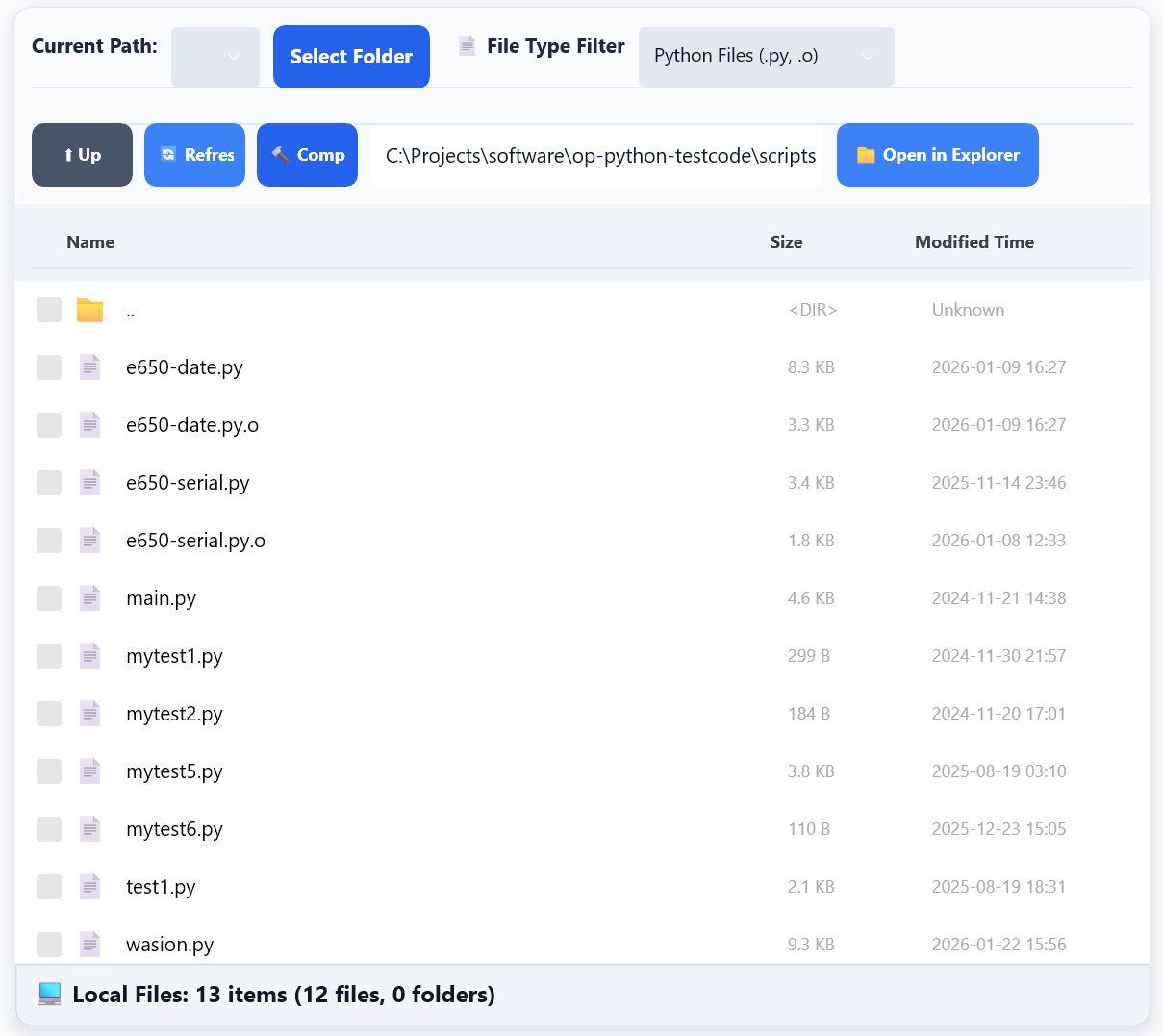
The local file panel shows files and folders on your computer.
Path area (top)
- Current path label
- Quick folder dropdown (Desktop, Documents, Downloads, etc.)
- Select folder button: open folder picker
- File type filter: All files, Text, Python, etc.
Navigation bar
- ⬆️ Up: Parent folder
- 🔄 Refresh: Refresh current folder
- 🔨 Compile: Compile selected Python file(s)
- Path box: View and edit current path
- 📁 Open in Explorer: Open current folder in system file manager (Windows only)
File list
- Header: Icon, Name, Size, Modified
- Items: 📁 folders and 📄 files with name, size, date
- Selection: Single or multiple (checkboxes)
Status bar
- File count, folder count, selected count
3.4 Remote device panel (right)
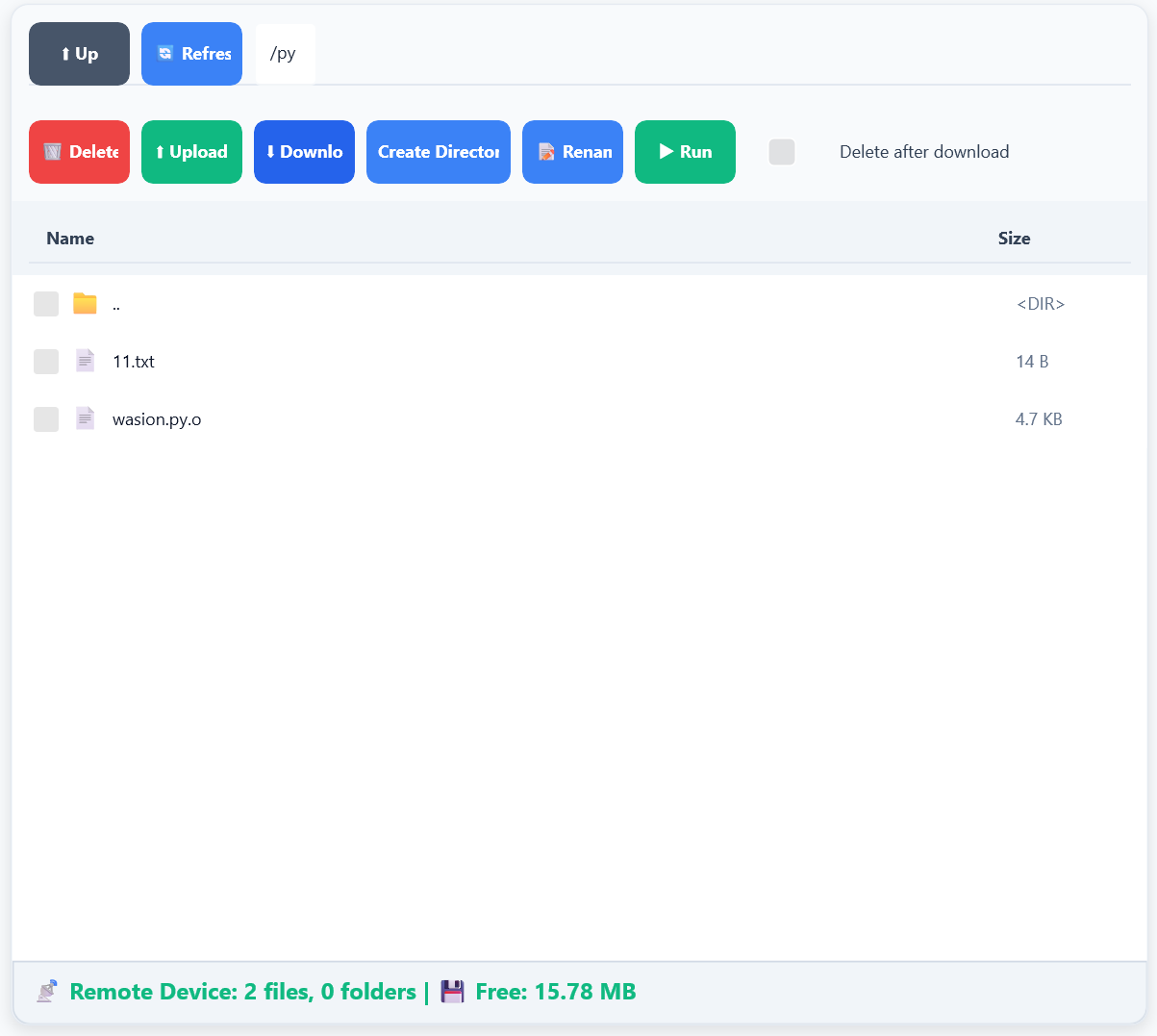
The remote device panel shows files and folders on the OP-BT/BTS device.
Path navigation bar
- ⬆️ Up: Go to parent directory
- 🔄 Refresh: Refresh device file list
- Path box: View and edit current device path (Unix-style, e.g.
/py)
Action buttons
- ⏹️ Stop: Cancel the current operation (usually hidden)
- 🗑️ Delete: Delete selected file(s)/folder(s)
- ⬆️ Upload: Upload local files to the device
- ⬇️ Download: Download device files to local
- Create directory: Create a new folder on the device
- 📝 Rename: Rename file or folder
- ▶️ Run: Run selected Python file
- Delete after download checkbox: Delete source file after download
File list area
Shows files and folders in the current device directory:
- Header: Column titles (icon, name, size)
- Items:
- 📁 Folder: shows
<DIR>for directories - 📄 File: shows actual file size
- 📁 Folder: shows
- Selection: Single or multiple selection
Status bar
- File count, folder count, free space on device
3.5 Bottom status bar

The status bar shows app and operation status in real time.
Status display
Left: Connection status
- 🔴 Not connected
- 🟡 Connecting…
- 🟢 Connected (connection type and device info)
Center: Operation progress
- Current operation (e.g. “Uploading: file.txt”)
- Progress bar and percentage
Right: Statistics
- Local file stats, remote device stats, selected items
3.6 Communication monitor (MAUI only)
To be documented.
3.7 Settings page
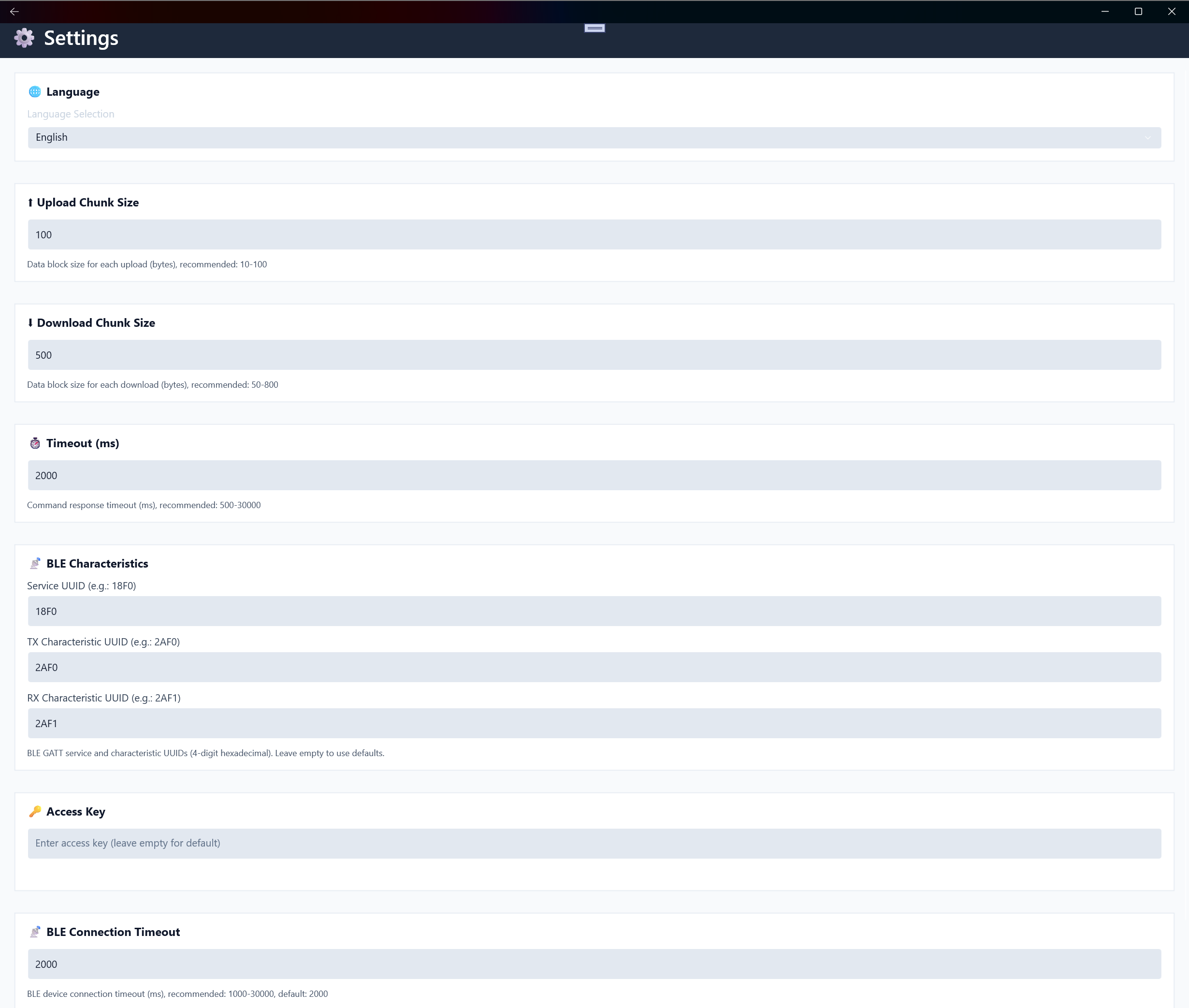
The settings page holds all app configuration options.
Options
- 🌐 Language: Interface language (中文 / English)
- ⬆️ Upload packet size: Upload chunk size (10–100 bytes)
- ⬇️ Download packet size: Download chunk size (50–800 bytes)
- ⏱️ Timeout: Command response timeout (500–30000 ms)
- 📡 BLE characteristics: BLE GATT service and characteristic UUIDs
- 🔑 Access key: Root directory access key
- 📡 BLE connection timeout: BLE connection timeout
- 💾 Save: Save all settings
- ❌ Cancel: Discard unsaved changes
See Chapter 8: Settings and configuration.
Chapter 4: Device connection
4.1 Connection types
The MAUI version supports:
- Serial: Connect to OP-BT/BTS via USB serial adapter or Bluetooth virtual COM port
- Bluetooth BLE: Connect over BLE (no pairing required)
Support by platform:
| Platform | Serial | Bluetooth BLE |
|---|---|---|
| Windows | ✅ | ✅ |
| Android | ✅ | ✅ |
| iOS | ❌ | ✅ |
| macOS | ❌ | ✅ |
4.2 Serial connection
Windows serial connection

Steps:
- Select connection type: In the connection type dropdown, choose Serial.
- Select port: Open the port dropdown; the app detects available ports. Choose the port used by the device (e.g. COM3). Bluetooth virtual serial ports appear as “COMx - OP-BTS xxxxx SPP”.
- Set parameters (defaults are usually fine): Baud rate 9600, Data bits 8, Parity None, Stop bits 1.
- Connect: Click 🔗 Connect, wait for the connection; the status bar shows “Serial connected”.
Reference: How to pair and get COM port on Windows 11
Android serial connection
To be documented.
4.3 Bluetooth BLE connection
Windows BLE connection

Steps:
- Select connection type: In the dropdown, choose Bluetooth BLE.
- Scan: Click Scan, wait for the scan to finish (about 5–10 seconds). OP-BT devices appear in the list.
- Select device: In the BLE device dropdown, choose the device. Format:
Device name - RSSI(e.g.OP-BTS T2 SPP - -65dBm). - Connect: Click 🔗 Connect; status bar shows “BLE connected” when done.
Signal strength:
-50dBm: Very strong-65dBm: Good (recommended)-80dBm: Weak- Below
-90dBm: Very weak; connection may be unstable
Android BLE connection
To be documented. (Prerequisites: Android 5.0+, Bluetooth on, location permission on Android 6.0+. Steps: Select BLE, Scan, select device, Connect.)
iOS BLE connection
To be documented. (Prerequisites: iOS 13.0+, Bluetooth on. Steps: Select BLE, Scan, select device, Connect. iOS manages Bluetooth permission; user is prompted on first use.)
macOS BLE connection
Prerequisites: macOS 11.0+, Bluetooth on. Steps: Same as iOS—select Bluetooth BLE, scan, then connect.
4.4 Connection parameters
Serial parameters
| Parameter | Description | Common values | Default |
|---|---|---|---|
| Baud rate | Data rate (bits/sec) | 300, 600, 1200, 2400, 4800, 9600, 19200, 38400, 115200 | 9600 |
| Data bits | Bits per character | 7, 8 | 8 |
| Parity | Error detection | None, Even, Odd | None |
| Stop bits | End-of-character | 1, 2 | 1 |
Important: Serial parameters must match on both the computer and the device.
BLE parameters
BLE uses these settings (editable in Settings):
- Service UUID: default
18F0 - TX characteristic UUID: default
2AF1(send) - RX characteristic UUID: default
2AF0(receive) - Connection timeout: default 2000 ms
4.5 Connection troubleshooting
Common issues
Q: Serial connection fails with “port in use”?
A: Close other apps that may use the port; check Device Manager; unplug/replug the USB adapter; restart the computer.
Q: BLE scan finds no devices?
A: Ensure the device is an OP-BT device, powered on and discoverable; turn on Bluetooth on the PC/phone; keep the device within 1–2 m; on Android 6.0+ grant location permission; try scanning again.
Q: BLE connection fails?
A: Check signal strength (prefer -65dBm or better); ensure the device is not in use by another app; rescan and select the device; verify BLE characteristic UUIDs in Settings.
Q: Connected but cannot see files?
A: Refresh the file list; check that the device is working; confirm firmware is compatible; check the status bar for errors.
Chapter 5: File management
5.1 File browsing and navigation
Local file navigation
Quick folder selection:
Use the dropdown below “Current path” to jump to common system folders:
- 🏠 Desktop
- 📄 Documents
- 📥 Downloads
- 🖼️ Pictures
- 🎵 Music
- 🎬 Videos
- 💻 Custom…
Path input:
- Type a full path in the path box and press Enter to go to that folder
- Path auto-complete is supported on some platforms
File list navigation:
- Double-click folder: Enter that folder
- Double-click file: No action (unlike traditional file managers)
- ⬆️ Up: Go to parent directory
Remote device navigation
- Current path: Shows the current path on the device (e.g.
/py) - Path edit: Type a device path to navigate
- ⬆️ Up: Go to parent directory
Path format:
- Unix-style paths (e.g.
/py/subdir) - Root is
/; Python file directory is/py - Only
/pyand its subdirectories are accessible - Access denied shows an error message
5.2 File selection
Single selection
- Default: Only one file or folder can be selected at a time
- How to select: Click a row to select it
- Feedback: Selected row is highlighted
Multiple selection
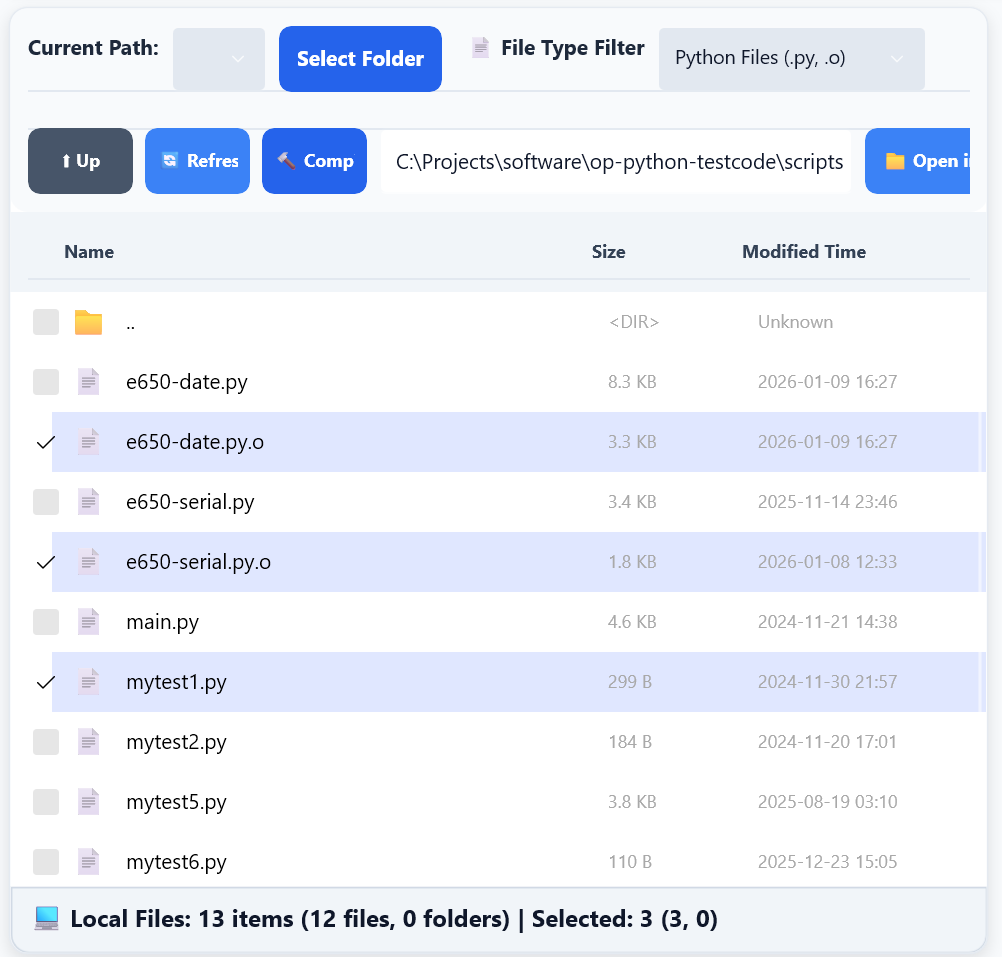
- Enabled by default: No extra setting needed
- How to select: Click a row to toggle selection; use checkboxes to select/deselect
- Batch actions: Upload, download, delete, etc. work on multiple selected items
Selection status
- Status bar: “Selected: X files, Y folders”
- Limits: Both local and remote panels allow selecting files and folders
5.3 File type filter
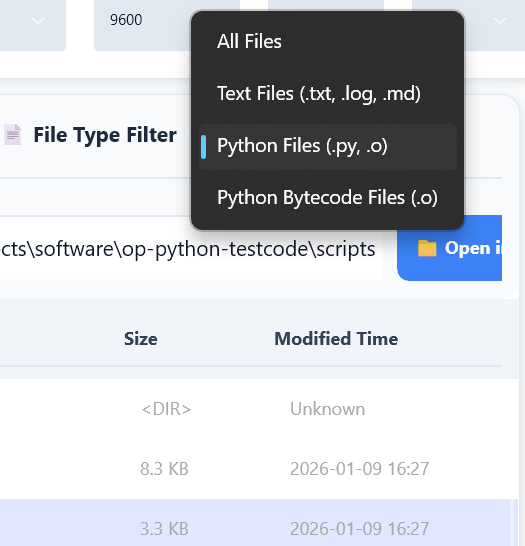
The file type filter helps you find specific file types quickly.
Filter options
| Filter | File types | Description |
|---|---|---|
| All files | All files and folders | Show everything in the directory |
| Text files | .txt, .log, .md | Text and log files |
| Python files | .py, .o | Python source and bytecode |
| Python bytecode | .o | Compiled bytecode only |
Filter rules
- Folders always shown: Folders are always visible regardless of filter
- Extension match: Filtering is by file extension
- Case insensitive: Extension matching ignores case
- Immediate: Filter applies as soon as you select it; no refresh needed
5.4 File upload
Single file upload
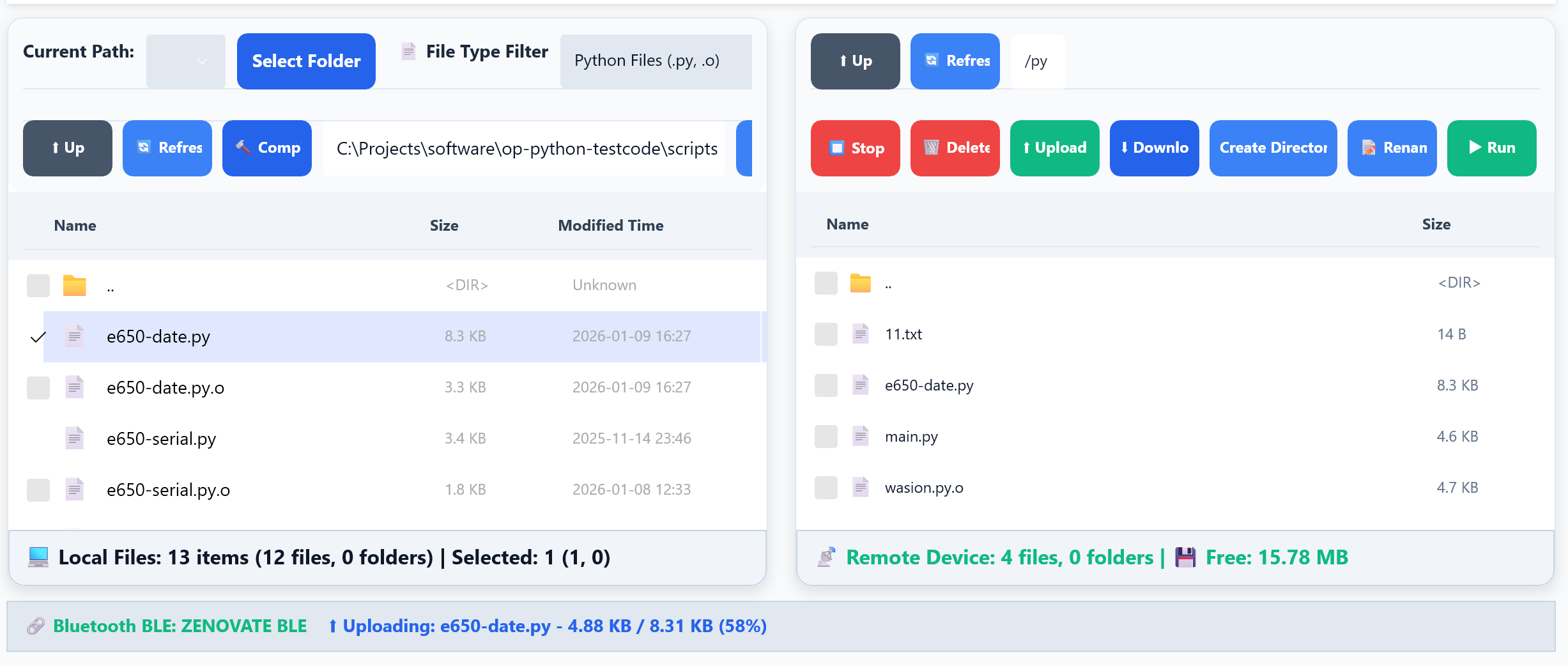
Steps:
- Select file(s): In the left (local) panel, select the file(s) to upload. Only files can be uploaded, not folders.
- Target: The right (remote) panel shows the device directory; files are uploaded there.
- Upload: Click the ⬆️ Upload button on the right panel.
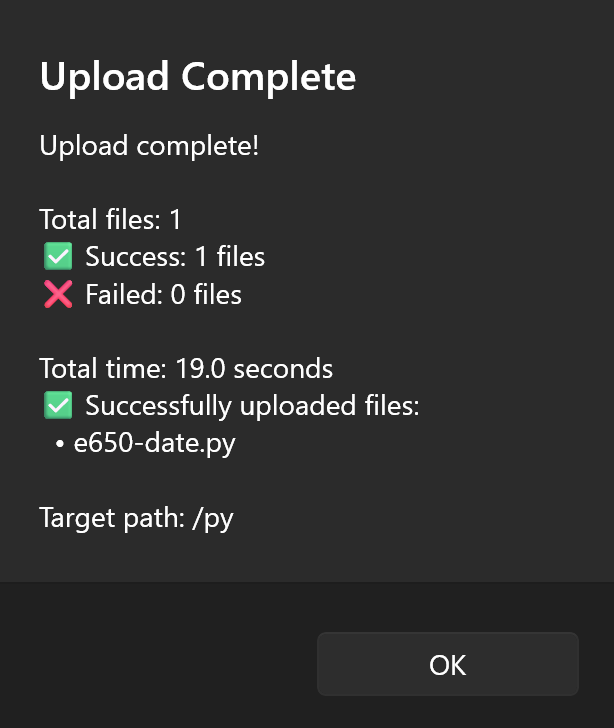
- Progress: Status bar shows “Uploading: filename (X%)”, progress bar, speed and ETA.
- Done: “Upload complete” is shown; the remote panel refreshes to show the new file(s).
Batch upload
Steps:
- Select multiple files: Use multi-select in the left panel (any file types).
- Upload: Click Upload; the app uploads each file in turn.
- Progress: Shows “Batch upload: X files”, current file, and count completed.
- Summary: When finished, shows success/failure counts and lists failed files with reasons.
Upload limits
- File types: All types supported
- File size: No hard limit; transfer is chunked
- Concurrency: One file at a time (device limit)
- Overwrite: If the target file exists, you are prompted to overwrite
5.5 File download
Single file download
Steps:
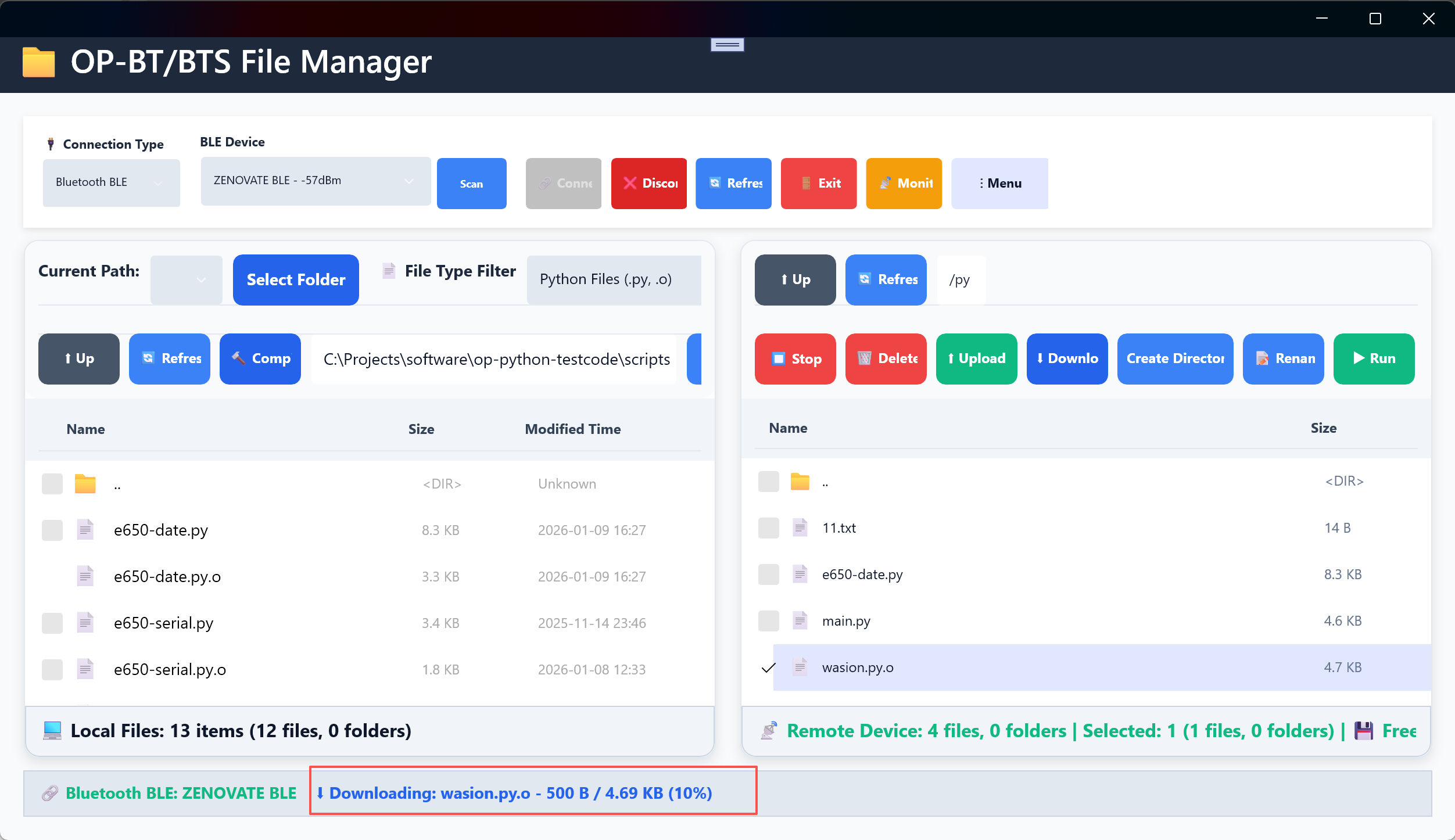
- Select file(s): In the right (remote) panel, select the file(s) to download.
- Target: The left (local) panel shows the destination folder; files are saved there.
- Download: Click ⬇️ Download on the right panel, or double-click a file in the remote panel.
- Progress: Status bar shows “Downloading: filename (X%)”, progress bar, and size.
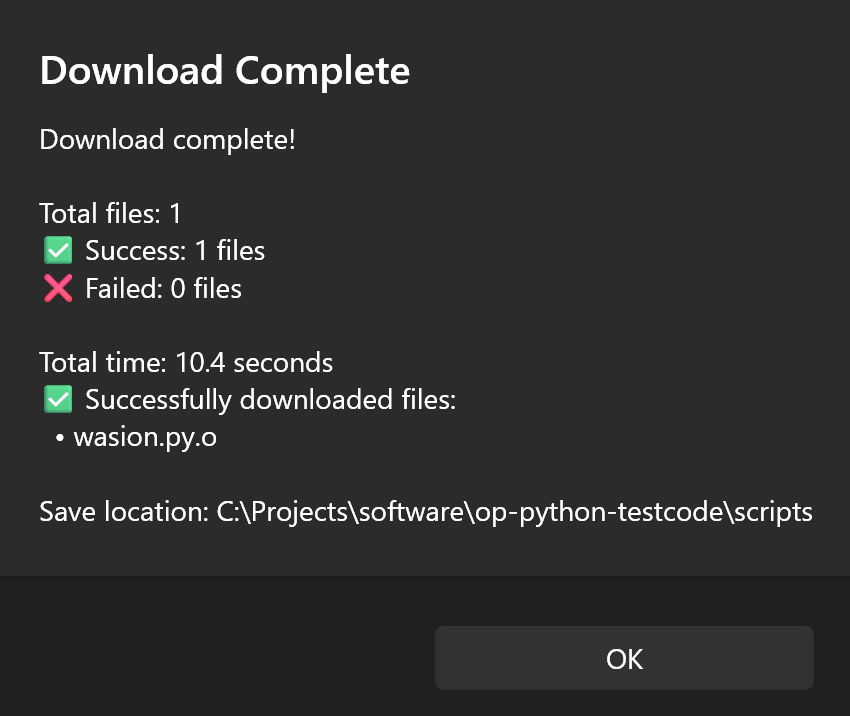
- Done: “Download complete” is shown; the local panel refreshes.
Batch download
Steps:
- Select multiple files in the right panel.
- Click Download. The “Delete after download” option applies per file if enabled.
- Progress shows the current file and overall count.
- When finished, a summary shows success/failure counts and error details for failures.
Delete after download
- Use case: Migrate files or free device space
- Safety: The remote file is deleted only after a successful download
- Batch: Works for each file in a batch download
How to use:
- Find the “Delete after download” checkbox at the bottom of the right panel.
- Check it.
- Run the download; remote files are removed after each successful download.
Warning: Deletion is permanent and cannot be undone.
5.6 File system operations
Create directory
Steps:
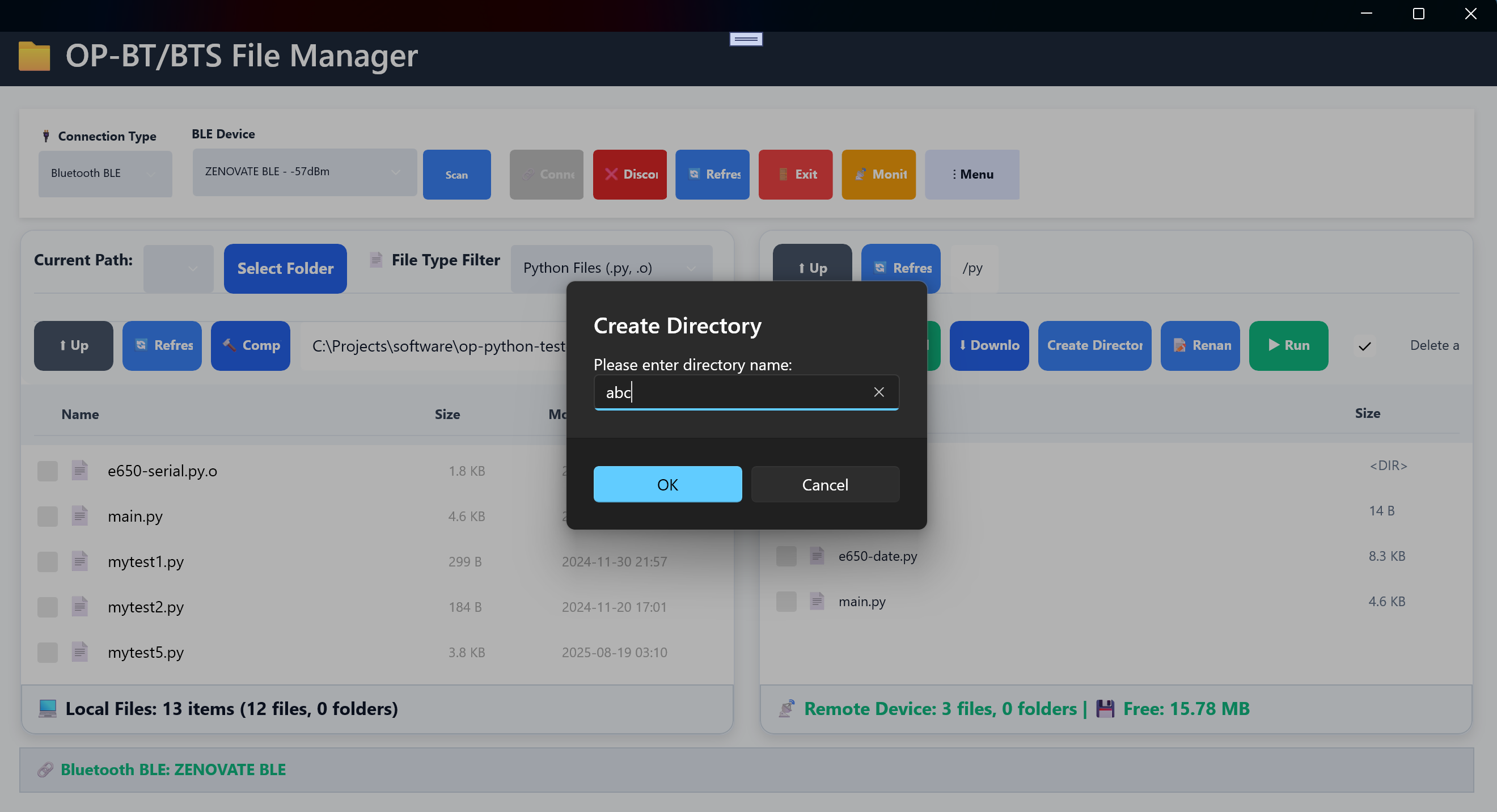
- Go to target: In the right panel, navigate to where you want the new folder.
- Open dialog: Click Create directory; a dialog asks for the folder name.
- Enter name: Use letters, numbers, and underscores; no special characters.
- Confirm: Click OK; the app validates the name and creates the directory.
- Result: Success message or error; the panel refreshes to show the new folder.
Delete file/directory
Delete file: Select the file(s) in the right panel, click 🗑️ Delete, confirm in the dialog.
Delete directory: Select the directory, click Delete. The dialog warns that all contents will be removed. The directory and all subfolders/files are deleted; this cannot be undone.
Rename file/directory
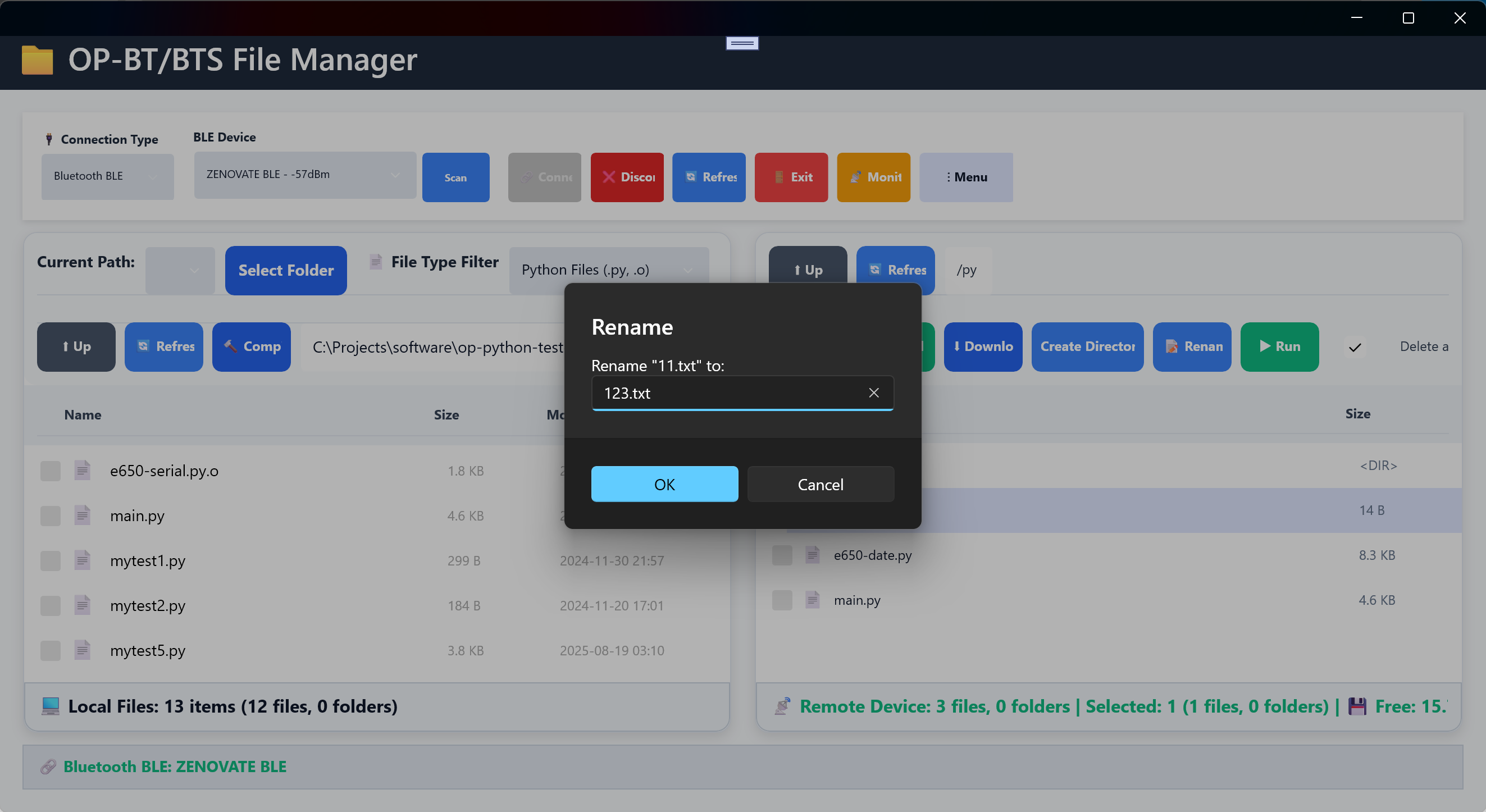
Steps:
- Select item: In the right panel, select one file or folder (only one).
- Open dialog: Click 📝 Rename; the rename dialog opens.
- Enter new name: Same rules as for creating a directory.
- Confirm: Click OK; the app checks validity and availability.
- Result: Success or error; the panel refreshes with the new name.
Chapter 6: Python development support
6.1 Python file compilation
OP-BT/BTS File Manager provides one-click Python compilation: it turns Python source into bytecode for running on the device.
Compilation features
- One-click: No manual commands; click the button to compile
- Batch: Single or multiple files at once
- Progress: Live progress and result summary
- Errors: Clear compile error messages
- Refresh: File list refreshes after compilation
Supported file types
- Python source:
.py— standard Python source
Compilation output
- Bytecode:
.py.o— OpPython bytecode
6.2 Compiler tool setup
Compilation uses the external tool op-py-compile.exe.
Tool requirements
- Name:
op-py-compile.exe - Location: Application directory or on system PATH
- Permissions: Must be executable
- Compatibility: Must match the Python version in use
How to get the tool
- With app: Ideally installed with the app
- Manual: Place the executable in the app installation directory
- PATH: Add its folder to the system PATH
Command format
op-py-compile.exe -c "filename"
6.3 Single-file compilation
Steps:
- Select file: In the left (local) panel, select one
.pyfile. - Compile: Click 🔨 Compile on the left panel (available only when a Python file is selected).
- Progress: Status bar shows “Compiling…”; the app runs
op-py-compile.exe -c "full path". - Result: Success → “Compile succeeded” and file list refresh; failure → error dialog with details.
6.4 Batch compilation
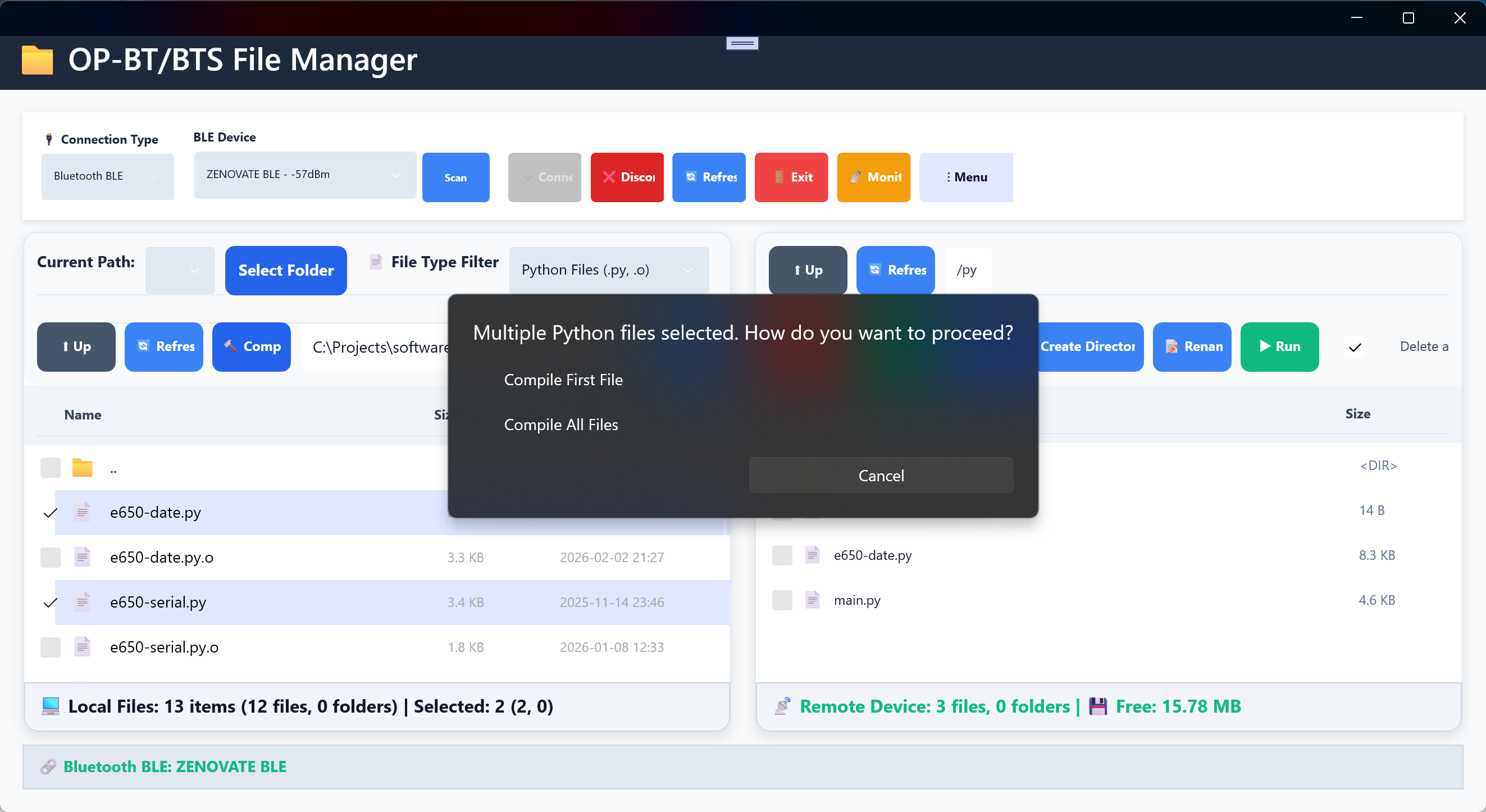
Steps:
-
Select files: Use multi-select to choose multiple
.pyfiles. -
Compile: Click Compile; the batch compile dialog appears.
-
Choose action:
- Compile first: Compile only the first selected file
- Compile all: Compile all selected files in order
- Cancel: Abort
-
Batch process:
- Status bar shows “Compiling X/Y files (success: A, failed: B)”
- Progress bar shows overall progress
- Compiler is invoked for each file in turn
-
Summary: When done, a dialog shows success/failure counts and lists failed files with error details.
6.5 Run Python file
OP-BT/BTS File Manager can run Python files directly on the device.
Features
- One-click run: Select a file and click Run
- File type: Only compiled
.o(bytecode) files are supported - Status: Status bar shows when the run command was sent
Steps
- Select file: In the right (remote) panel, select one
.ofile. The file must be under/py. Only one file can be selected. - Run: Click ▶️ Run in the remote panel.
- Status: Status bar shows “Run filename — command sent”; the device executes the file.
File requirements
| Requirement | Description | Example |
|---|---|---|
| File type | Must be .o |
app.py.o |
| Location | Must be under /py |
/py/main.py.o, /py/test/app.py.o |
| Path length | After removing /py/ prefix, ≤ 30 characters |
main.py.o (9 chars) ✓ |
| Selection | One file only | Single file ✓ |
Error messages
If requirements are not met, the status bar shows:
- No file selected: “Please select a file to run”
- Multiple files: “Only one file can be run at a time”
- Directory selected: “Cannot run a directory”
- Wrong type: “Only Python bytecode (.py.o) can be run”
- Not under /py: “File is not under /py”
- Path too long: “File path too long (over 30 characters)”
6.6 Viewing compile results
File type filter
Use the “Python bytecode” filter to see compiled .o files:
- In the file type dropdown, select “Python bytecode (.o)”.
- The list shows only
.obytecode files. - Confirm that the bytecode file was created.
Bytecode vs source
| Type | Description | How created |
|---|---|---|
.py.o |
Bytecode | Generated by compile |
.py |
Source | Written by user |
Device run tips
- Prefer
.obytecode on the device. - Keep
.pyfor development; deploy bytecode for production.
Chapter 7: Communication monitor
In development.
Chapter 8: Settings and configuration
8.1 Opening settings

How to open:
- Click the menu button (⋮) at the top right of the main window.
- Choose ⚙️ Settings from the menu.
- The settings page opens as a modal dialog.
8.2 Language
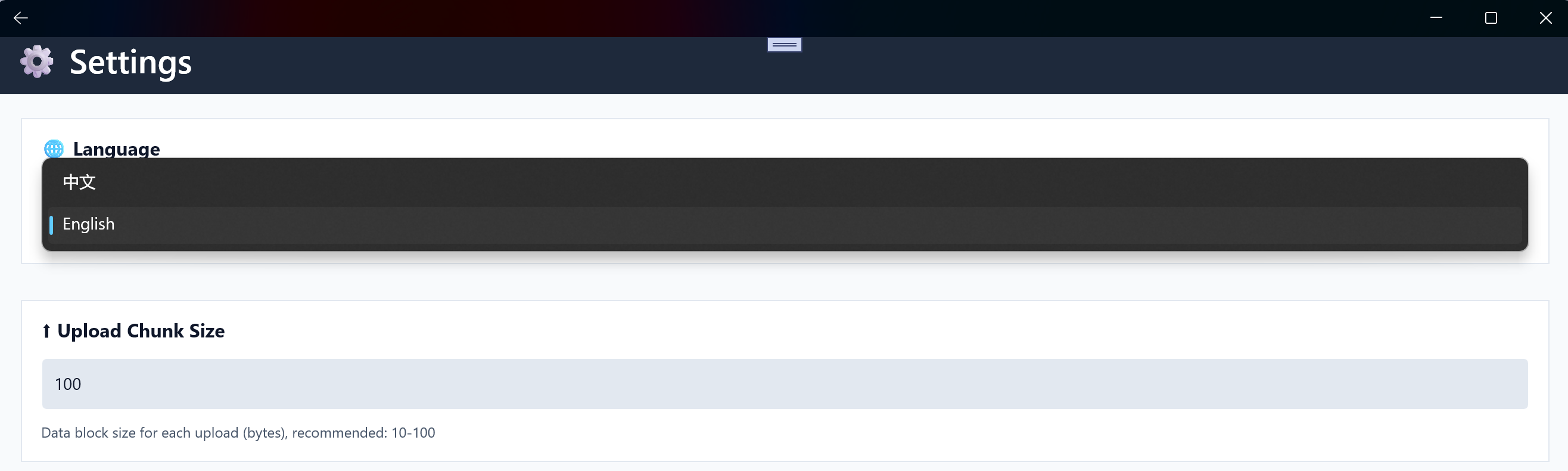
Options:
- 中文: Full Chinese UI
- English: Full English UI
To change:
- Open Settings.
- Open the “Language” dropdown.
- Select 中文 or English.
- Click Save; the app applies the new language immediately.
Effect: Buttons, labels, menus, dialogs, and status messages all update to the selected language.
8.3 Connection parameters
Upload packet size

- Unit: Bytes
- Default: 100
- Range: 10–100
Guidance:
- 10–30: High-latency links; most stable
- 31–70: Normal links; balanced
- 71–100: Fast links; highest throughput
Recommended: 50–80
Download packet size
- Unit: Bytes
- Default: 500
- Range: 50–800
Guidance:
- 50–200: Memory-limited devices
- 201–500: Standard devices; balanced
- 501–800: High-performance devices
Recommended: 200–500
Timeout
- Unit: Milliseconds
- Default: 2000 (2 s)
- Range: 500–30000
Guidance:
- 500–1000 ms: Fast link, local serial
- 1001–2000 ms: Normal link, typical BLE
- 2001–5000 ms: Slow or unstable link
Recommended: 2000 ms
8.4 BLE characteristics

Configure GATT service and characteristic UUIDs for BLE.
Settings
Service UUID:
- BLE GATT service UUID; 4 hex digits (e.g.
18F0); default18F0; identifies the OP-BT GATT service.
TX Characteristic UUID:
- Used to send data to the device; 4 hex digits (e.g.
2AF0); default2AF0; write characteristic.
RX Characteristic UUID:
- Used to receive data from the device (notifications); 4 hex digits (e.g.
2AF1); default2AF1.
UUID format
- Length: Exactly 4 characters
- Characters: 0–9 and A–F (case insensitive)
- Valid:
18F0,2AF0,2AF1,0001 - Invalid:
18F(3 chars),18F00(5 chars),18G0(invalid character)
Usage
- Default: Most OP-BT devices use defaults (18F0, 2AF0, 2AF1); no change needed.
- Custom: Change only if the device uses non-standard UUIDs.
- Leave blank: Uses default value if empty
8.5 Access key (root access)
In development.
8.6 BLE connection timeout
- Meaning: Maximum time to wait for the device when establishing BLE connection
- Unit: Milliseconds (ms)
- Default: 2000 ms (2 s)
- Range: 1000–30000 ms (1–30 s)
Timeout guidance
| Timeout | Scenario | Note |
|---|---|---|
| 1000–2000 ms | Device nearby, strong signal | Fast connect, fast fail |
| 2001–5000 ms | Normal use | Balance speed and success |
| 5001–10000 ms | Device far or weak signal | Higher success rate |
| 10001–30000 ms | Very weak signal | Slow but may succeed |
Recommended: 2000 ms. Use 1000–1500 ms when device is close; use 3000–5000 ms when far or weak.
8.7 Saving settings
Save:
- Make your changes.
- Click 💾 Save.
- Settings are saved and applied; “Settings saved!” is shown.
Cancel:
- Click ❌ Cancel.
- Unsaved changes are discarded; you return to the main window.
When settings apply: New operations use the new values immediately; the current connection is unchanged; reconnecting uses the new parameters.
Chapter 9: Platform-specific guides
9.1 Windows
Feature support
- ✅ Serial: Full support
- ✅ Bluetooth BLE: Full support
- ✅ Communication monitor: Full support
- ✅ All file operations: Full support
Notes
Serial: Some ports may require administrator rights; if you see permission errors, try running the app as administrator.
Bluetooth: Windows 10/11 manages Bluetooth; the first time you use BLE you may be prompted to allow access.
Files: Full local file system access; “Open in Explorer” is available (Windows only).
Recommended settings
- Upload packet: 50–80 bytes
- Download packet: 200–500 bytes
- Timeout: 2000 ms
- BLE timeout: 2000 ms
9.2 Android
In development.
Chapter 10: FAQ
10.1 Connection
Q: No serial port found after starting the app?
A: Check:
- Serial adapter is connected to USB (or Bluetooth paired).
- Device Manager shows the serial device.
- Click Refresh in the app to rescan ports.
- If still missing: unplug/replug USB, try another port, or re-pair Bluetooth.
- On Windows: try running the app as administrator.
Q: “Port in use” when connecting?
A: Another program is using the port:
- Close serial tools, other file managers, terminals using that port.
- Restart the computer to free ports.
- Ensure no other device is using the same port.
Q: BLE scan finds no devices?
A: Check:
- OP-BT/BTS device is on and discoverable.
- Bluetooth is on on the PC/phone.
- Device is within 1–2 m.
- Device is advertising (e.g. LED blinking).
- Click Scan again (scan takes about 5–10 s).
- On Android 6.0+: grant location permission.
Q: BLE connection fails?
A: Check:
- Correct device selected from the list.
- Signal strength (prefer -65 dBm or better).
- Device not in use by another app.
- Disconnect, rescan, then connect again.
- Device supports BLE (not all OP-BT devices do).
- BLE characteristic UUIDs in Settings are correct.
- If BLE is unstable, try serial.
Q: Connected but no files visible?
A: Check:
- Device is powered and running OP-BT/BTS firmware.
- Click Refresh on the right panel.
- Device supports file operations.
- Connection parameters (e.g. baud rate) are correct.
10.2 File operations
Q: Upload is very slow or often fails?
A: Try:
- Reduce upload packet size in Settings (e.g. 50 bytes).
- Check connection: stable serial cable; move closer if using BLE.
- Increase timeout in Settings (e.g. 3000 ms).
- Upload in smaller batches.
- Ensure device has free space.
- On mobile (Android/iOS), use smaller packet sizes.
Q: Downloaded file is garbled or corrupted?
A: Possible causes:
- Mismatched transfer parameters; use consistent settings.
- Some binary files may need special handling.
- Local disk full → file truncated.
- No write permission on the local folder.
- Delete the bad file and download again.
- For text files, check encoding settings.
Q: Some files fail in batch upload/download?
A: Common causes:
- Name conflict: target already has a file with that name; overwrite or rename.
- Permission: no access to some file or folder.
- Space: device or local storage full.
- File locked by another program.
- Other files in the batch still transfer; check the failure list for details.
10.3 Python compilation
Q: Compile button does nothing or “tool not found”?
A: Check:
op-py-compile.exeis in the app directory or on system PATH.- The executable is not corrupted.
- It has execute permission.
- Path does not contain non-ASCII or special characters.
- Reinstall or re-download the tool if needed.
- Tool matches your platform.
Q: Compile reports syntax error?
A: Check:
- Python syntax in a text editor.
- File is saved as UTF-8.
- Code is compatible with target Python version.
- import statements and module paths.
- Indentation (Python is indentation-sensitive).
Q: Run Python file has no visible effect?
A: Check:
- File is under
/py. - File is
.pyor.o. - Only one file is selected.
- Device is working.
- The app only sends the run command; output appears on the device (e.g. serial/terminal), not in the app.
10.4 Platform-specific
Q: Android cannot scan BLE devices?
A: On Android 6.0+ grant location permission for BLE scan; ensure Bluetooth permission is granted; some devices need location services on; check app permissions in system settings; try revoking and re-granting permissions.
Q: iOS BLE connection is unstable?
A: Keep the app in foreground (iOS may disconnect BLE in background); keep device in range; disconnect and reconnect; confirm device is iOS-compatible.
Q: Windows serial needs administrator?
A: Right-click the app → “Run as administrator”; check serial device permissions and user group; verify serial driver is installed.
Chapter 11: Troubleshooting
11.1 Common error messages
Connection errors
| Message | Likely cause | What to do |
|---|---|---|
| “Port not found” | Hardware not connected or driver issue | Check connection, reinstall driver |
| “Port in use” | Another program using the port | Close conflicting app, check port usage |
| “Device not responding” | Device off or faulty | Check power and status |
| “Permission denied” | User permissions | Run as administrator |
| “Parameter error” | Wrong serial parameters | Check and fix communication settings |
| “BLE device not found” | BLE scan issue | Check device is on, rescan |
| “BLE connection failed” | BLE connection issue | Check signal, confirm device supports BLE |
File operation errors
| Message | Likely cause | What to do |
|---|---|---|
| “File not found” | Deleted or wrong path | Check path and existence |
| “Disk full” | No free space | Free disk space |
| “Access denied” | Permission or file locked | Check permissions, close programs using file |
| “Invalid filename” | Illegal characters | Rename, avoid special characters |
| “Path too long” | Path exceeds system limit | Shorten path or move to root |
Compilation errors
| Message | Likely cause | What to do |
|---|---|---|
| “Compiler tool not found” | Not installed or wrong path | Install tool, check PATH |
| “Syntax error” | Python syntax | Fix code syntax |
| “Import error” | Module dependency | Check imports and module presence |
| “Encoding error” | File encoding | Save file as UTF-8 |
| “Version incompatible” | Python version mismatch | Ensure code matches target version |
11.2 Diagnostic steps
Basic checks
- Hardware: Serial adapter LEDs; USB connection; Bluetooth pairing (if BLE).
- Software: Correct port selected; communication parameters; app version up to date.
- Device: Power and status LEDs; firmware version; device working.
Isolate the problem
- Try other connection: If serial fails, try BLE; if BLE fails, try serial.
- Minimal config: Test with default parameters to rule out config issues.
- Other platform: If possible, test on another device to rule out platform-specific issues.
- Third-party software: Close conflicting apps; check firewall and antivirus.
11.3 Getting support
Information to provide
If you cannot resolve the issue, prepare:
- Basic info: App version; OS version; hardware (CPU, RAM, storage); OP-BT/BTS model and firmware.
- Problem description: Steps to reproduce; expected vs actual behavior; error messages and screenshots; how often it happens (always / sometimes / rarely).
- Diagnostics: Relevant log files; system event logs; serial parameters and connection settings; what you observed during testing.
- Environment: Other related software/hardware; network (if relevant); recent system or app updates.
Contact
- Support email: support@zenovate.tech
Appendix
A. Shortcuts
Windows
| Shortcut | Action |
|---|---|
Ctrl + C |
Copy (where supported) |
Ctrl + V |
Paste (where supported) |
F5 |
Refresh file list |
Esc |
Cancel or close dialog |
Android / iOS
- Touch-based; long-press may show context menu where implemented.
B. File path formats
Local paths
- Windows:
C:\Users\Username\Documents\file.txt - Android:
/storage/emulated/0/Documents/file.txt - iOS: App sandbox (not directly user-accessible)
- macOS:
/Users/Username/Documents/file.txt
Remote device paths
- Unix-style:
/py/subdir/file.py - Root:
/ - Python directory:
/py
C. Version history
Doc v1.1 (2026-01-31)
- Full English translation of the user manual
v0.0.48 (current)
- Initial MAUI release
- Windows, Android, iOS, macOS support
- Dual-pane file manager
- Serial and Bluetooth BLE connection
- Communication monitor
- Python compile and run
- Languages: 中文 / English
Doc version: 1.1
Last updated: 2026-01-31
Applies to: OpBtFileManager.MAUI v0.0.47+
Thank you for using OP-BT/BTS File Manager MAUI. For questions or feedback, please contact support.